
How to write alt text for SEO is a skill every blogger and site owner should learn, because alt text does two jobs at once: it tells Google what your images show, and it tells blind visitors what they would see if they could. Get it right and your images can rank in Google Images, your pages get a small but real relevance boost, and your site becomes usable for everyone. Get it wrong and you waste one of the easiest on-page SEO wins available.
The good news is that writing great alt text takes about thirty seconds per image once you know the rules. This guide covers what alt text is, the seven rules that make it work, good and bad examples side by side, and how to add and check alt text on your own site.
What Is Alt Text?
Alt text, short for alternative text, is a short written description of an image that lives in the image HTML tag. When a browser cannot load an image, the alt text shows in its place. When a blind person visits your page with a screen reader, the software reads the alt text aloud so they know what the image contains. And when Google crawls your page, it reads the alt text to understand what the image is about.
In HTML, alt text looks like this: an image tag with an alt attribute that holds the description. Most content management systems, including WordPress, give you a plain Alt Text field when you upload an image, so you never need to touch the code. The description you type there becomes the alt attribute.
Alt text is invisible to most sighted visitors, which is exactly why it gets ignored. But it is one of the few places on a page where you can describe an image in words, and search engines still depend on words. Alt text belongs on the same checklist as your title tag, headings, and internal links. If you want a full page-level routine, our on-page SEO checklist covers every element worth reviewing before you publish.
Why Alt Text Matters for SEO (and Accessibility)
Alt text helps your site in three separate ways, and only one of them is about rankings.
First, it helps you rank in Google Images. Google Images is a search engine of its own, and it sends real traffic. Google says it uses alt text, along with the page content and the image file name, to understand what an image shows. A descriptive alt text gives your image a fair chance of appearing for relevant image searches, which can bring visitors who would never have found your page through a normal web search.
Second, it adds topical relevance to the page. Alt text is part of the page content Google reads. When your alt text naturally describes images that match the page topic, it reinforces what the page is about. This is a supporting signal, not a ranking trick, and it works best when the rest of the page is already well optimized. The same principle applies to keyword placement: put the right words in the right places, naturally, and the page becomes easier for Google to understand.
Third, and most important for real people, alt text makes your site accessible. Millions of people browse with screen readers. Without alt text, a screen reader can only say “image” and move on, and the visitor misses whatever information the image carried. Writing alt text is a basic courtesy, and in many countries accessibility is also a legal expectation for public websites.
How Google Uses Alt Text
Googlebot cannot see images the way people do. It can recognize some image content automatically, but it still relies heavily on the text signals around an image: the alt text, the file name, the caption, the nearby headings, and the surrounding paragraphs.
When Google builds its image index, alt text is one of the strongest signals for deciding what an image is and which searches it should appear for. A vague alt text like “IMG_4521” or “photo” tells Google nothing. A specific one like “bar chart showing keyword density of 2 percent across ten blog posts” tells Google exactly what the image contains and which queries it might match.
Alt text also matters when images fail to load. A broken image with good alt text still communicates its message, and the visitor still understands the page. A broken image with no alt text leaves a blank box and a confused reader.
The 7 Rules of Good Alt Text
Follow these seven rules and your alt text will be better than most of the web.
- Describe the image, not the file. Say what a person looking at the image would see: the subject, the action, and the important details. “Golden retriever puppy sleeping on a blue blanket” beats “dog” and it beats “IMG_4521.jpg”.
- Keep it short. Aim for under 125 characters. Most screen readers cut off alt text around that length, and short descriptions are easier for everyone to absorb. If you need more detail, put it in the caption or the surrounding text, not the alt text.
- Be specific. Add the detail that makes this image different from every similar image. “Woman checking keyword rankings on a laptop dashboard” is specific. “Woman with laptop” could be anything.
- Include your keyword only when it fits naturally. If the image genuinely shows the topic of the page, the keyword will fit on its own. Forcing it into every alt text looks like spam and helps nobody. Treat alt text the way you treat keyword density in body text: natural beats stuffed, every time.
- Do not start with “image of” or “picture of”. Screen readers already announce that the element is an image. Starting with those words wastes characters and annoys listeners. Go straight to the description.
- Match the context of the page. The same image can deserve different alt text on different pages. A chart of search traffic on a post about keyword research should mention keyword research. On a post about site speed, the same chart should mention traffic growth after a speed fix. Write for the page the image sits on.
- Leave decorative images empty. If an image adds no information, such as a divider line, a background texture, or a purely decorative icon, use an empty alt attribute. That tells screen readers to skip it instead of reading out something useless.
Alt Text Examples: Good vs Bad
The fastest way to learn alt text is to compare weak descriptions with strong ones. The table below shows the same image described badly and well.
| Image | Bad Alt Text | Good Alt Text |
|---|---|---|
| Bar chart of monthly traffic | chart | Bar chart showing monthly organic traffic growing from 200 to 1,400 visits |
| Person typing at a laptop | image of a person | Freelance writer typing a blog post on a laptop at a desk |
| SEO tool dashboard screenshot | screenshot1.png | Keyword density checker dashboard showing 2.1 percent density for the focus keyword |
| Chocolate cake on a plate | cake, chocolate cake, best chocolate cake recipe, easy cake | Slice of chocolate layer cake with ganache on a white plate |
| Team meeting in an office | team | Marketing team reviewing a content calendar on a whiteboard in a bright office |
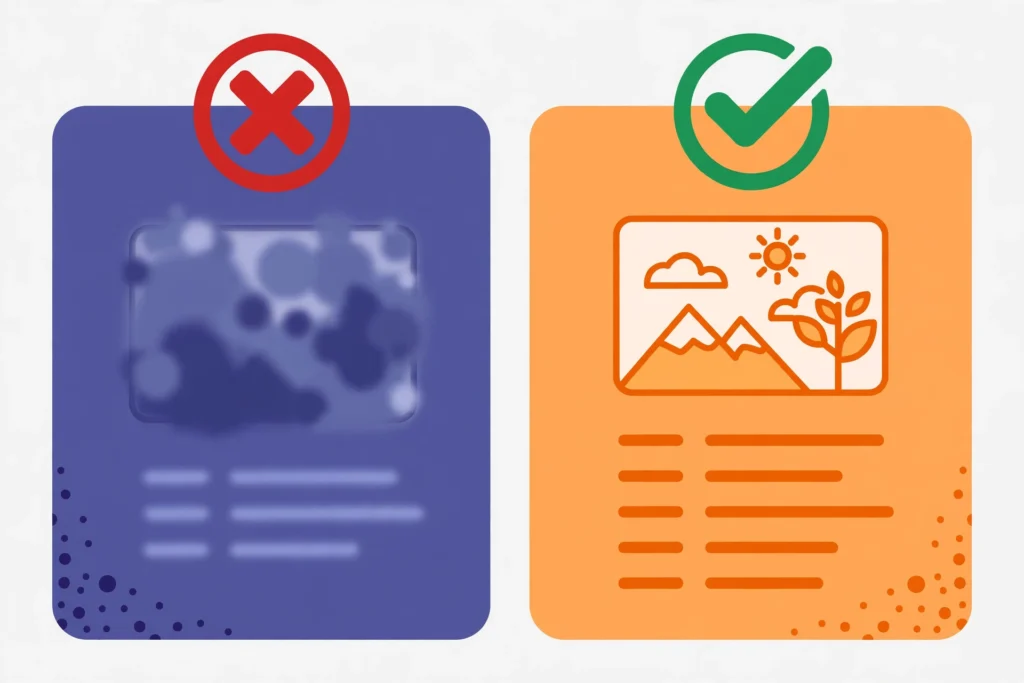
Notice what the good versions have in common: they are specific, they are one short sentence, and they describe what is actually visible. The bad versions are vague, stuffed with keywords, or just file names. The chocolate cake row is the classic keyword-stuffing mistake. Repeating the keyword four times does not help rankings, and it makes the screen reader experience miserable. If you suspect your pages overuse keywords in any element, run them through a keyword stuffing check before you publish.
How Long Should Alt Text Be?
There is no official character limit for alt text, but the practical answer is 125 characters or fewer. That number comes from screen reader behavior: popular screen readers like JAWS historically cut off alt text at around 125 characters, and while newer versions handle longer text, short descriptions remain the safer choice.
Think of alt text as a caption for someone who cannot see the image, not as a paragraph. One clear sentence is almost always enough. If the image is a complex chart or infographic that genuinely needs a longer explanation, write a short alt text that summarizes the main point, and put the full explanation in the text next to the image or in a visible caption below it.
Length matters in the other direction too. Alt text that is only one or two words, like “chart” or “team”, is almost as useless as no alt text at all. Aim for a full descriptive phrase: subject plus action plus one or two telling details. Counting characters is quick, and a word and character counter can help when you are trimming a long description down to size.
Alt Text for Different Image Types
Not every image needs the same kind of description. The table below shows how to approach the image types you will use most often.
| Image Type | What to Describe | Example Alt Text |
|---|---|---|
| Photograph | Subject, action, setting | Home baker kneading bread dough on a wooden counter |
| Chart or graph | What the data shows, the trend | Line graph showing bounce rate falling from 68 to 41 percent after a redesign |
| Infographic | The main takeaway, not every detail | Infographic listing five steps to plan a keyword research workflow |
| Screenshot | What the screen shows and why it matters | WordPress editor showing the alt text field in the image settings panel |
| Product image | Product, color, key feature | Matte black wireless headphones with a folding headband on a white background |
| Logo | Company or brand name | Zuhio Keyword Count Checker logo |
| Decorative image | Nothing, leave it empty | (empty alt attribute) |

For charts and infographics, resist the urge to transcribe every number into the alt text. The alt text should carry the conclusion the image supports, and the surrounding paragraph should carry the data. That split keeps the alt text short and keeps the page readable for everyone.
Should You Put Keywords in Alt Text?
Yes, when the keyword honestly describes the image. No, when you have to force it in.
Google has been clear for years that keyword stuffing in alt text does not work and can look like spam. The right approach is the same one you use for headings and body text: write for the reader first, and let the keyword appear where it naturally belongs. If your page is about keyword research and the image shows a keyword research dashboard, the phrase “keyword research dashboard” belongs in the alt text because it is accurate, not because it is a keyword.
A useful test: read the alt text aloud and ask whether it sounds like something a person would say when describing the image to a friend. If it sounds like a list of search terms, rewrite it. The same natural-language standard applies to using keywords in headings and to every other on-page element.
One more caution: do not put the same keyword-heavy alt text on every image in a post. Each image should have its own description. Ten images with identical alt text look automated, and they waste ten chances to describe ten different visuals. Vary the wording the way you vary your semantic keywords across a page.
Alt Text vs Image Title vs Caption vs File Name
These four things are often confused, and they are not the same.
Alt text is the description for screen readers and search engines. It is the most important of the four for SEO and accessibility, and it is the one this guide is about.
Image title is the text that appears as a tooltip when someone hovers over an image. It has little to no SEO value, and most accessibility experts say to leave it blank. Do not copy your alt text into the title field and assume you have done the job twice. The title is optional; the alt text is not.
Caption is the visible text under an image that every visitor can read. Captions are great for adding context, credit, or a key takeaway, and people read them more than body text. A caption supports the alt text but does not replace it, because screen readers and search engines treat them differently.
File name is the name of the image file itself, like keyword-research-dashboard.png. Google reads file names too, so name your files descriptively with hyphens between words before you upload them. A good file name plus good alt text gives Google two clear signals instead of one.
Think of it as a team: the file name identifies the image, the alt text describes it, and the caption adds context for readers. All three should work together, and none of them should be stuffed with keywords.
How to Add Alt Text in WordPress
Adding alt text in WordPress takes seconds, and you can do it at upload time or later.
When you upload an image through the Media Library or the Add Media button in the editor, look for the Attachment Details panel on the right side. The Alt Text field is near the top. Type your description there and it is saved with the image. Every time you insert that image into a post, the alt text comes with it.
If an image is already in a post, click the image in the editor and open its settings. In the classic editor, click the pencil icon to open the Image Details window, where you can edit the Alternative Text field. In the block editor, select the image block and find the Alt Text field in the settings sidebar on the right.
One habit that saves trouble later: write the alt text the moment you upload the image, before you insert it. Alt text written at upload time follows the image everywhere it is used. Alt text added later, inside a single post, only applies to that one placement. If you reuse images across posts, the upload-time habit keeps every placement covered.
After adding alt text, update the post and check the live page. View the page source or use your browser inspector to confirm the alt attribute is present on the image tag. This quick check catches the cases where an editor silently dropped the text, which happens more often than you would expect.

How to Check and Fix Alt Text on Your Site
Most sites have images with missing or weak alt text, especially older posts published before anyone thought about it. A simple audit finds them.
Start with your most important pages: the homepage, your top tool pages, and your highest-traffic posts. Open each page, view the page source, and search for image tags with empty or missing alt attributes. In WordPress, the Media Library also lets you filter and review images one by one, though it is slow for large libraries.
For a full-site check, use a crawler or an SEO audit tool that reports images missing alt text. Our SEO content analyzer approach works the same way: review one page at a time, fix what you find, and move on. Prioritize pages that already get traffic, because those are the pages where better alt text can bring the fastest return.
When you find a missing alt text, write one on the spot using the seven rules above. When you find a stuffed or vague one, rewrite it. And when you find a decorative image with a meaningless description, empty the alt text so screen readers skip it. Fixing alt text is quiet, unglamorous work, but it is exactly the kind of steady improvement that compounds. Track the results the same way you monitor keyword positions: fix, wait, and watch the trend.
Common Alt Text Mistakes to Avoid
Most bad alt text falls into one of six traps. Check your own posts against this list.
- Leaving it blank. The most common mistake. Every informative image needs alt text. Only decorative images should have an empty alt attribute, and that is a deliberate choice, not an oversight.
- Using the file name. “IMG_4521.jpg” and “screenshot-2026-11-14” describe nothing. Rename files descriptively before upload, and always write real alt text.
- Keyword stuffing. Repeating the keyword, or listing several keywords, reads badly and can look like spam. One natural mention is plenty.
- Being too vague. “Chart”, “photo”, and “people” tell the reader nothing. Add the subject, the action, and the detail that matters.
- Being too long. A three-sentence alt text will be cut off by screen readers and ignored by everyone. Keep it under 125 characters and move extra detail to the caption or body text.
- Copying the same alt text everywhere. Each image deserves its own description. Duplicate alt text across a post wastes opportunities and looks automated.
Local businesses should watch for one extra mistake: forgetting location in images that genuinely show it. A photo of a storefront, a service area, or a local event can naturally include the city or neighborhood in its alt text, which supports your local keyword targeting without any stuffing.
Frequently Asked Questions About Alt Text
Does alt text help SEO?
Yes, in two ways. It helps images rank in Google Images, which brings extra traffic, and it adds topical relevance to the page by describing images in words Google can read. It is a supporting signal, not a magic ranking factor, and it works best alongside solid content, good keyword placement, and fast pages.
How many keywords should I put in alt text?
At most one, and only when it fits naturally. If the image genuinely shows the topic, the keyword will appear on its own. Never repeat a keyword in alt text or list several keywords. Check the overall balance of your page with a keyword density check if you are unsure whether you have overdone it.
What is the ideal alt text length?
Under 125 characters. That keeps the full description readable by screen readers and forces you to be specific. One clear sentence is the target. If the image needs more explanation, put it in the caption or the surrounding text.
Should every image have alt text?
Every image that carries information should have alt text. Purely decorative images, like dividers and background textures, should have an empty alt attribute so screen readers skip them. The difference is intent: if removing the image would remove information, it needs alt text.
Is alt text the same as the image title?
No. Alt text is read by screen readers and search engines. The title attribute only shows a hover tooltip and has little SEO value. Always fill in the alt text, and leave the title blank unless you have a specific reason to use it.
Can I use AI to write alt text?
AI tools can draft alt text, and they are a useful starting point for large image libraries. But always review and edit the output. AI descriptions are often generic, miss the context of your page, and sometimes describe details that are not in the image. The best alt text is written by someone who knows both the image and the page it sits on.
Conclusion
Alt text is one of the simplest SEO tasks there is, and one of the most skipped. The rules are easy: describe what the image shows, keep it under 125 characters, be specific, use your keyword only when it fits, skip “image of”, match the page context, and leave decorative images empty. Do that for every image, and your site becomes more findable in Google Images, more understandable to Google, and more usable for every visitor.
Start today with your five most-visited posts. Open each one, check every image, and fix the alt text on the spot. Then make it a habit: write the alt text the moment you upload an image, before you ever insert it. Small habits like this are how a new site earns its place. If you are building your content plan around terms a new site can actually win, our guide on how to find low competition keywords pairs well with this one, and a keyword gap analysis will show you which topics your competitors cover that you do not cover yet.