Introduction
You are writing an essay, a report, or a blog post, and suddenly you need to know how long it is. Maybe your teacher asked for 1,000 words, or your client wants exactly 1,500. Counting by hand would take forever, and thankfully you do not have to. In this guide, you will learn how to check word count in microsoft word in several easy ways, on Windows, on Mac, and online.
By the end, you will also understand why numbers can change from one tool to another, and you will know how to check word count in microsoft word without any worry.
How to Check Word Count in Microsoft Word: The Quick Answer
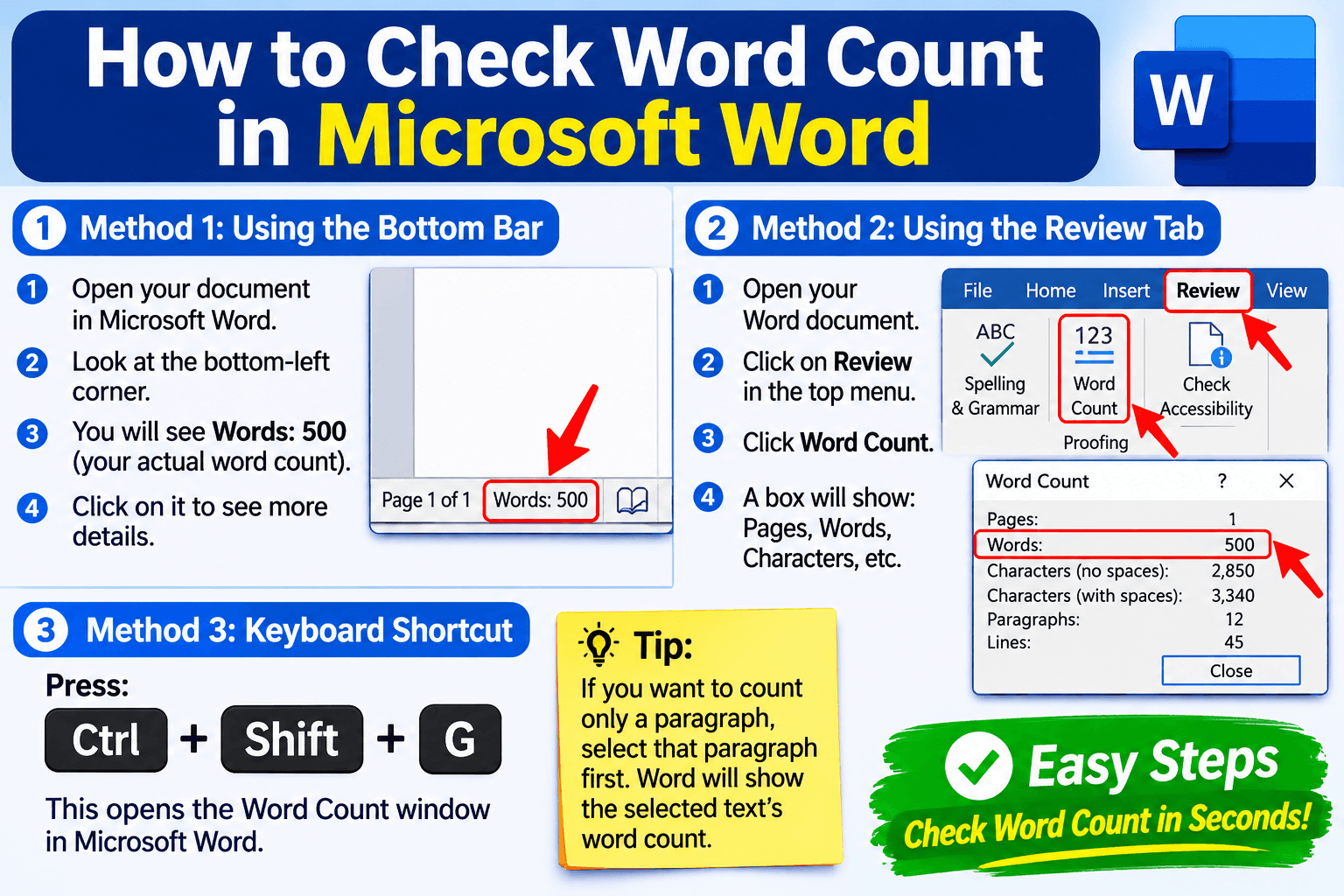
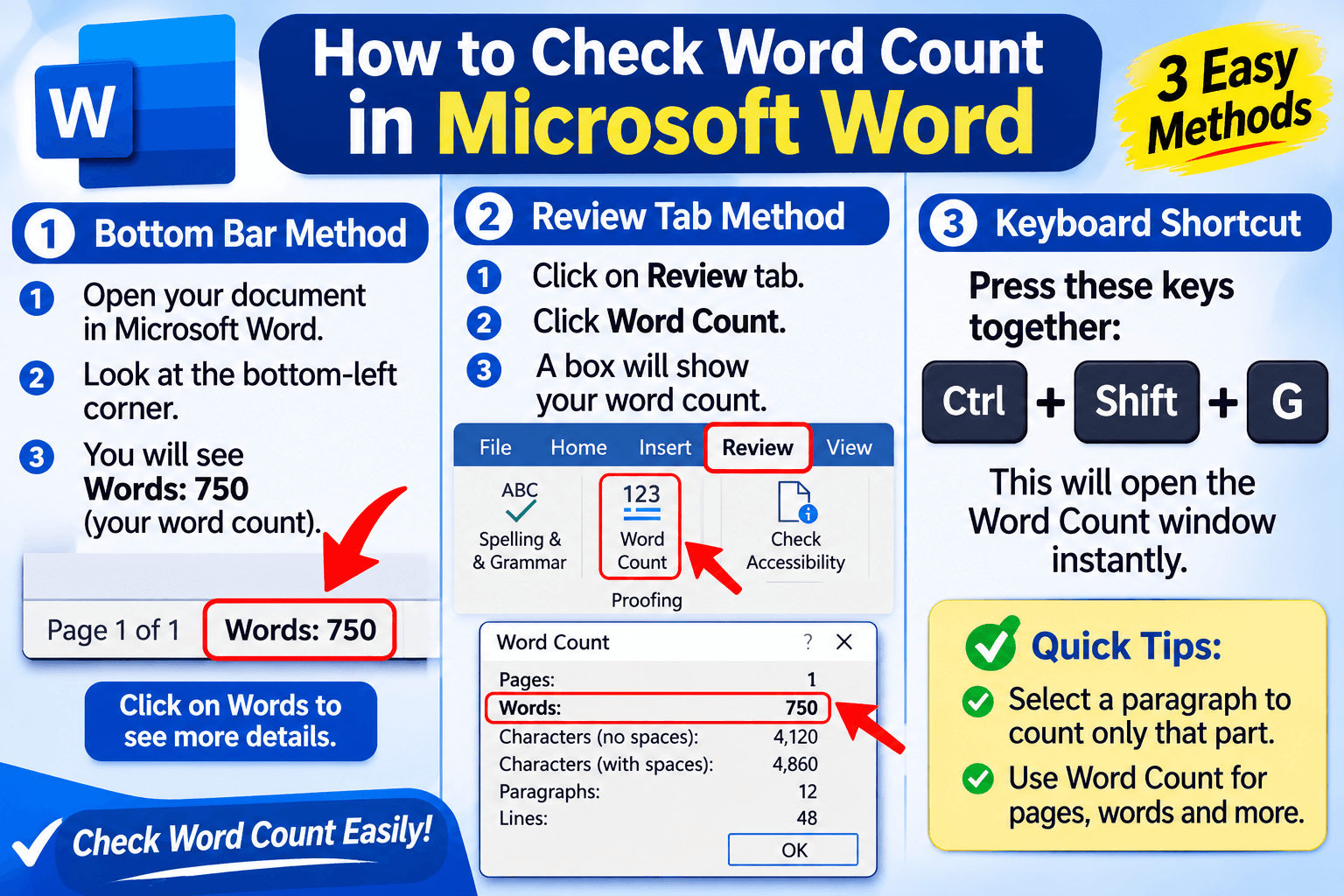
The fastest answer is simple. Look at the bottom left corner of your Word window, in the thin bar called the status bar. Word shows the number of words there, and it updates while you type. If you want more details, click that number, or open the Review tab and press Word Count. A small box will show words, pages, characters, paragraphs, and lines.
That is how to check word count in microsoft word in about two seconds, and every other method in this guide is only a variation of it.
Why Word Count Matters
Word count is not only a school rule. Teachers use it to set fair work for every student. Editors use it to plan page space and pay writers. Bloggers use it to match the depth of articles that already rank. Job seekers use it to keep a cover letter short and sharp. Even social media posts and ads have limits.
When you know your count, you can cut extra words or add missing ideas with confidence, and you avoid last-minute surprises before a deadline.
Check Word Count Using the Status Bar
The status bar is the strip at the bottom of the window. It usually shows the page number and the word count. If you cannot see the count, right click on the status bar and tick the Word Count option, and it should appear.
This is the easiest way of how to check word count in microsoft word while writing, because you never have to open a menu. The number moves up and down as you type or delete, so you always know where you stand.
How to Check Word Count in Microsoft Word With the Review Tab
Open your document and click the Review tab at the top. In the Proofing group, find the button named Word Count and click it. A small window opens and shows pages, words, characters without spaces, characters with spaces, paragraphs, and lines. This box gives more detail than the status bar, and it is helpful for tasks with character limits.
Click Close when you are done. You can open this window as many times as you want without changing your document at all.
Use the Keyboard Shortcut
If you like speed, use the shortcut. On Windows, press Control, Shift, and G together, and the Word Count window opens at once. On a Mac, press Command, Shift, and G.
This is great when you write long documents and check your progress often. Learning this shortcut is one of the best ways of how to check word count in microsoft word without lifting your hands from the keyboard. After a few days, it becomes a natural habit, and you will use it without thinking.
Count Words in Selected Text
Sometimes you only need the count of one paragraph or one section. Use your mouse to highlight the text you want. The status bar then shows something like 120 of 1,500 words, which means your selection has 120 words, and the full document has 1,500. You can also open the Review tab after selecting text, and the Word Count window will show the count for that part only. This helps when a teacher gives different limits for the introduction, the body, and the conclusion.
How to Check Word Count in Microsoft Word on Mac
The steps on Mac are nearly the same. Look at the bottom of the window, where the status bar shows the word count. If it is hidden, click on the bottom bar and choose the word count option.
You can also click the Tools menu and select Word Count, or go to the Review tab and click the Word Count button. The shortcut Command, Shift, and G also works. Menus may look a little different between versions, but the idea stays the same everywhere.
How to Check Word Count in Microsoft Word Online
Word for the web is the free browser version. The count appears in the status bar at the bottom of the page, and you can also click it to see more. If you do not see it, check the Review tab and look for Word Count.
The online version shows fewer details than the desktop app, but it is perfect for quick checks. The mobile app also has a Word Count option, usually inside the Review menu, though the exact place can change with updates.
Include or Exclude Footnotes and Text Boxes
In the Word Count window, you will see a small checkbox that says Include textboxes, footnotes and endnotes. When it is ticked, Word counts those parts too. When it is not, they are left out. This matters for school papers, where teachers may or may not count footnotes. Headers and footers are not counted. Always check the rules of your assignment first, then set the box the way your teacher or client wants.
What Counts as a Word in Word?
Word counts any group of characters separated by spaces. That means numbers, short words like “a” and “I,” and even a lone symbol with spaces around it can count as a word.
A hyphenated word such as well-known usually counts as one word. Two words joined by a dash with no spaces may count as one too. Knowing these small rules explains why your count sometimes feels a little off from what you expected.
Show a Live Word Count Inside Your Document
You can place the word count right inside the page. Click where you want the number, open the Insert tab, choose Quick Parts, then Field. Pick NumWords from the list and click OK.
The number appears in your text. If it does not update, right click it and choose Update Field. This is helpful for reports that must show their own length, but remember to remove it before you submit if it is not needed.
Why Word Count Differs From Other Tools
You may paste the same text into an online counter and see a slightly different number. This happens because tools follow different rules for hyphens, numbers, symbols, and line breaks.
Some also count footnotes or headings, and others do not. Because of this, it is wise to know how to check word count in microsoft word and use that number when a teacher or client asks for it. A difference of a few words is normal and rarely a problem.
Word Count for SEO Articles
For blog writers, word count is a helpful guide, not a goal by itself. A longer article can cover a topic in more detail, but a long page full of filler will not rank.
Look at the pages that already rank for your topic and aim for a similar depth. Then use the steps of how to check word count in microsoft word to see whether your draft is close. Quality, clear headings, and helpful answers matter far more than a perfect number.
Common Mistakes
The first mistake is forgetting that the status bar may count the whole document while you meant only one section. The second is counting titles, references, and footnotes when your teacher does not want them. The third is trusting another tool over your teacher’s rules.
The fourth is padding text with empty words just to reach a number. The fifth is not saving the file before you check. Knowing how to check word count in microsoft word correctly helps you avoid all of these small mistakes.
Tips to Reach Your Target Word Count
If you are short, add a real example, a short story, or a clear definition, not empty filler. If you are over, remove repeated ideas and long phrases, and replace them with shorter ones.
Write your first draft freely and check the count at the end. Check again after each edit, since small changes add up. Use the habit of how to check word count in microsoft word often, and you will learn to feel your length without even looking.
Quick Checklist
Before you submit, run a short check. Did you open the Word Count window and read the number? Did you tick or untick footnotes and text boxes as the rules say?
Did you check only the needed section? Is your text close to the target, with no filler? Did you save your file? If you remember how to check word count in microsoft word and can answer yes to each question, your document is ready to send.
Final Thoughts
Checking your length is one of the simplest tasks in Word, but it saves a lot of worry. Use the status bar for a quick view, the Review tab for details, and the shortcut for speed. Keep your focus on clear, helpful writing, and let the number guide you only a little.
2 thoughts on “How to Check Word Count in Microsoft Word: A Simple Guide for Everyone”