Introduction
You have just finished a draft. Now comes the question that slows every writer down: did I use my main keyword too little, too much, or just right? Counting by eye takes minutes, and you can still get it wrong. The better way is to check your keyword count in seconds, see exactly where each keyword appears, and fix problems before your client, your editor, or your readers notice them. This guide shows you how, step by step, and you can try everything on your own draft as you read.
Why Your Keyword Count Matters
Your keyword count tells you how often a word or phrase appears in your text, and that one number can warn you about two opposite problems. If the count is zero or very low, your page may not clearly say what it is about. If the count is very high, your writing may sound forced, and repeating a phrase too often is what Google calls keyword stuffing. Checking your count does not tell you whether you will rank, but it helps you see your draft the way a reader would, and it catches mistakes before you publish.
What Is a Keyword Count?
A keyword count is simply the number of times a chosen word or phrase appears in a piece of text. If your keyword is “content audit” and it shows up six times, your keyword count is six. People also call this keyword frequency. The count alone is easy to understand, but it changes meaning with the length of the text, because six mentions in a 300-word post feel very different from six mentions in a 3,000-word guide. That is why most tools also show a percentage next to the count.
Keyword Count vs. Keyword Density


Keyword density is the count shown as a percentage of the total words. You find it by dividing the count by the total words and multiplying by 100. For example, six mentions in a 1,200-word article gives a density of 0.5 percent. Use the count when a brief gives you several mentions, and use density when you want to compare texts of different lengths. Neither number is a ranking rule, so they work best as a quick health check for your writing.
The Fastest Way to Check Your Keyword Count
The quickest method is a keyword counter that does the math for you. The steps below use the free Zuhio Keyword Count Checker, but the same idea works with most counters, and the whole process takes less than a minute once you have done it a couple of times.
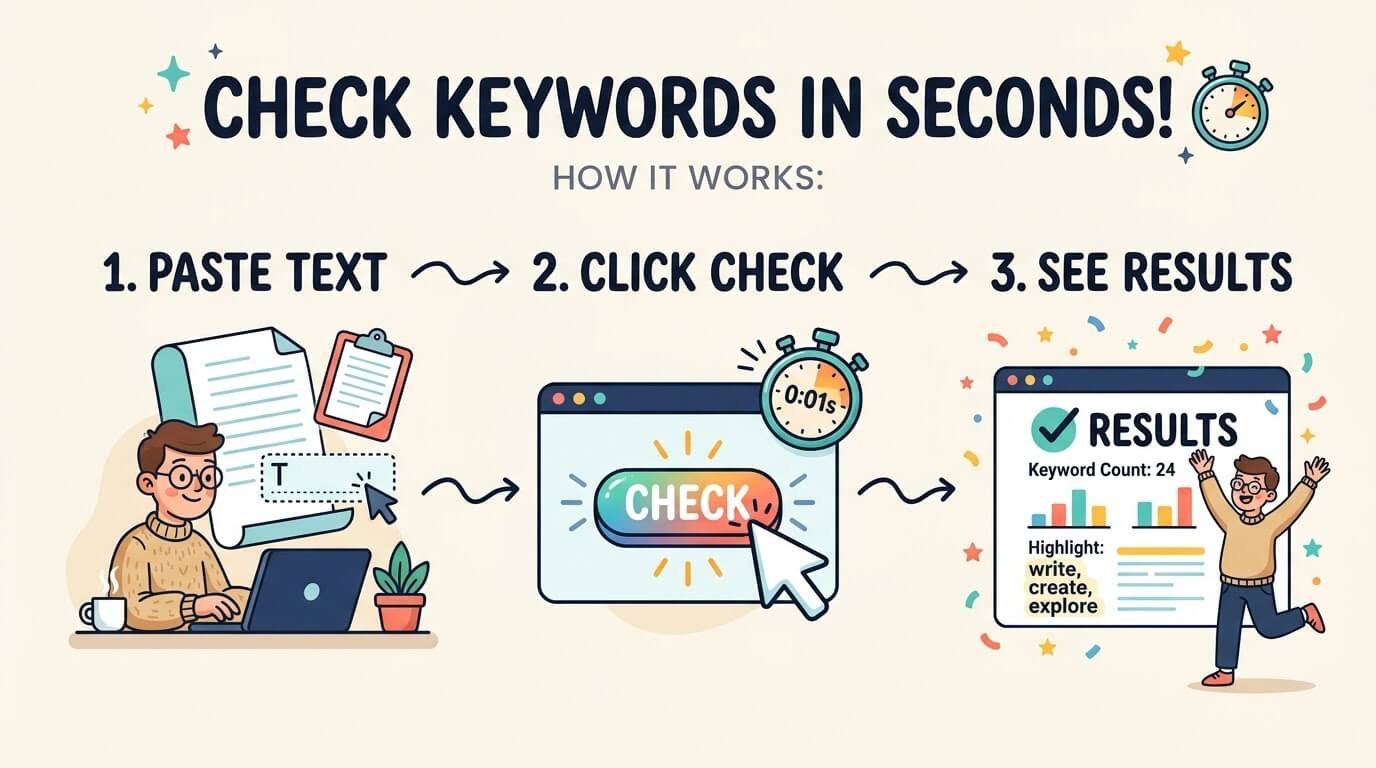
Step 1: Paste Your Text
Copy your full draft and paste it into the text box. Include the headings if you want them counted, because they are part of your page. A shorter piece of text works too, so you can test a single paragraph or a title and meta description. Paste the final version, since editing after you check can change your numbers.
Step 2: Add Your Keywords
Type your main keyword, then add a few related terms or variations, separated by commas or new lines. The tool can check up to 50 keywords at once, so you can test your main phrase, its plural, and a few supporting terms in the same run. Keep each entry clear and specific, because very broad words like “seo” will match very often and tell you little.
Step 3: Choose the Matching Mode
Choose the matching mode. Whole-word matching counts only complete words, so “art” is not counted inside “article”. Partial matching counts the letters anywhere, which can be useful when you want to catch every form of a word. For most checks, whole-word matching gives the cleaner answer, so start there and switch only when you have a reason to.
Step 4: Read the Results
Click the check button and read the results. For each keyword, you will see the count, the density, and the sentences where it appears. Spend most of your time on the sentences, because they show how the keyword reads in context. A good number with an awkward sentence is still a problem that you need to fix before you publish.
Want to see this on your own text? Open the free keyword count checker, paste any draft, and run your first check. It takes less than a minute, and the results will show you something about your writing that you cannot easily see by reading alone.
How to Read Count, Density and Coverage
Count is how many times the phrase appears, and density is that count as a share of all the words. Coverage is a little different: it shows how much of your text is taken up by the words in the phrase. For a single word, density and coverage are the same. For a two-word phrase, each match uses two words, so coverage is higher than density. If two tools show different numbers for the same phrase, this difference is a common reason, so check how each tool defines its numbers before you compare them.
Whole-Word vs. Partial Matching
Take the sentence “The article covers art and smart art.” With whole-word matching, “art” appears twice. With partial matching, it appears four times, because it is also found inside “article” and “smart”. The text did not change, but the count doubled. This is the most common reason people get confused by keyword counts. Pick one mode, use it every time, and write down which one you used when you share results with a client or a teammate.
How to Check a Keyword Phrase
To check a phrase, type it exactly as it appears in your text. The words must appear in the same order with only spaces between them, so a comma, a dash, or a line break in the middle will break the match. This is why “keyword research, tools” will not count as “keyword research tools”. If you want to catch both forms, add both as separate entries. Also remember that exact matching treats “keyword” and “keywords” as different words, so add the plural when it matters to you.
Set Minimum and Maximum Targets
If a client or editor gave you a target range, use Keyword brief mode. You write each line as the keyword, a minimum, and a maximum, for example content audit | 4 | 8. The tool then tells you whether your count is below, within, or above the range. This saves time on long lists and removes any doubt about whether you met the brief. Keep in mind that these ranges are editorial targets from your team or client and not rules from Google.
Find Overused Words With Content QA
Sometimes the problem is not your target keyword but a word you did not plan to repeat. Content QA mode lists the most-used terms in your draft so you can spot them quickly. If a casual word like “really” or “great” is near the top, or a product name appears in nearly every paragraph, you have found something to trim. It is also a useful check on a piece written by someone else, because it shows what the text is really about.
Check Your Keyword Count by Hand
You can also Check Your Keyword Count in Seconds by hand. In most word processors, press Ctrl+F (Cmd+F on a Mac), type the keyword, and read the number of matches. This is fine for one word in a short document. The limits are that it often counts inside longer words, it handles only one phrase at a time, and it does not give you density or the sentences around each match. For anything beyond a glance, a counter saves time and avoids mistakes.
Common Reasons Your Count Looks Wrong
If your result looks wrong, check a few simple things first. The matching mode may be set to partial, which raises the count. You may have used a plural or another form of the word that exact matching treats separately. Punctuation or a line break may have split a phrase. Hyphenated words, numbers, and apostrophes can also be handled differently from tool to tool. Finally, make sure you pasted the full draft and not an older version. Fixing these usually explains the difference.
What Is a Healthy Keyword Count?
There is no official number of mentions that Google rewards. A common rule of thumb for informational articles is a density somewhere between about 0.3 and 1 percent for the main phrase, but this is a convention and not a rule. A short product description may sit higher and still read well, and a long guide may sit lower. The best test is simple: read the flagged sentences out loud. If they sound natural and helpful, your count is probably fine, whatever the percentage says.
A Simple Editing Routine

A short routine keeps this fast. Write your draft first without watching the numbers. Then paste it into the counter with your main keyword and two or three variations. Read the sentences, trim any extra mentions that add nothing, and add the keyword where it is missing from the title, the introduction, or a heading. Run the check once more after editing, and then stop. Checking again and again leads to over-editing, and a draft that reads well is worth more than a perfect number.
Is It Safe to Paste Your Draft?
Many writers worry about pasting unpublished drafts into online tools, and that is a fair concern. The Zuhio Keyword Count Checker says it runs in your browser, so your text is not uploaded. You can confirm this for any tool by opening your browser’s developer tools and watching the network tab while you run a check. For very private documents, it is worth doing this check before you paste anything.
Who Gets the Most From This Check
Content writers use it to meet a brief without guessing, and editors use it to catch repetition before a piece goes live. SEO agencies can run the same check on every client article, so the whole team follows one clear standard. Bloggers and small business owners get a fast way to see whether a page really talks about what it is meant to rank for.
Students and teachers can use it to see which words an essay leans on. If you spend any part of your week reading or writing web content, a quick keyword count check will save you time and remove a lot of second-guessing.
Final Thoughts
A keyword count will not rank a page by itself, but it takes away the guessing that makes editing slow and stressful. In a few seconds, you can see how often your main phrase appears, where it sits in your sentences, and which words you are repeating without meaning to. That means fewer rounds of revision, cleaner drafts for your clients, and more confidence when you press publish.
The best habit is also the simplest one: write for people first, run a quick check at the end, fix only what needs fixing, and move on. Do not chase a perfect percentage, because a natural, helpful article will always beat a stiff one with a neat number. If you want to put this into practice right now, paste your latest draft into the free Zuhio Keyword Count Checker, enter your main keyword and a few variations, and see what the numbers tell you. Your next article could be tighter, clearer, and ready to publish in minutes.
2 thoughts on “Check Your Keyword Count in Seconds: A Simple Guide for Writers and SEOs”