Introduction
You see them on menus, posters, bills, business cards, and shop windows, and you may use them every day without thinking. A QR code is a small square picture that holds information, and your phone camera can read it in a second. If you want to make one for your own website, menu, or event, a QR code generator is the tool you need. In this guide, you will learn what a QR code generator is, how it works, and how to make codes that people can scan easily, all in simple words.
What Is a QR Code Generator?
A QR code generator is an online tool or app that turns your information into a QR code image. You type or paste something, such as a website link, a message, or a phone number, and the tool draws the black and white squares for you. You can then download the image and put it on a poster, a card, a package, or a screen. The word QR stands for quick response, and the idea is to let people reach information fast, with only a phone camera.
A Short History of the QR Code
The QR code was invented in 1994 by a Japanese company called Denso Wave, which needed a better way to track car parts in factories. Old barcodes could hold only a small amount of data, but the new square code could hold much more and could be read quickly from any angle. The company allowed people to use the idea freely, and that helped it spread across the world. Today, almost every phone can scan these codes, and they have become a normal part of daily life.
How a QR Code Generator Works
The tool takes your text or link and turns it into a pattern of small black and white squares. Some squares tell the scanner where the code starts and which way it faces. Other squares hold the actual data, and a part is kept as backup for errors. When a phone camera sees the pattern, it reads the squares and turns them back into text or a link. The whole process happens in a moment, and the code does not need an internet connection to be read, though opening a link does.
Static vs Dynamic QR Codes
A static code holds your information directly inside the pattern. Once it is made, you cannot change it, but it will work as long as the information is correct, and it usually stays free. A dynamic code holds a short link that points to your real page, so you can change the destination later without printing a new code. Dynamic codes often come with scan tracking, but they usually need a paid plan, and they may stop working if the plan ends. Choose based on how much you may need to change.
Who Should Use a QR Code Generator?
Restaurant owners can link menus. Shop owners can link to products, offers, or payment pages. Teachers can share worksheets and videos. Event planners can share tickets, maps, and schedules. Job seekers can add a code to a resume that links to a portfolio. Musicians and creators can link to their songs and channels. Anyone who wants to move people from paper or a screen to a web page in a fast way can gain from a simple code.
What Can You Put Inside a QR Code?
A code can hold many kinds of information. The most common is a website link. You can also store plain text, an email address, a phone number, or a text message. Some tools let you add Wi-Fi details, so guests can join your network with one scan, or a contact card, so people can save your details. You can also link to a map location or a social media page. Keep the content short, because less data makes a simpler code that scans more easily.
Features to Look For
A good tool should let you choose the type of content, such as link, text, Wi-Fi, or contact. It should let you download the code in common formats like PNG for screens and SVG or PDF for printing. Color and logo options are nice if you want to match your brand. A preview helps you check the result before you download it. Look for a clean design, no forced sign up for simple codes, and a clear explanation of how long dynamic codes will keep working.
How to Use a QR Code Generator Step by Step
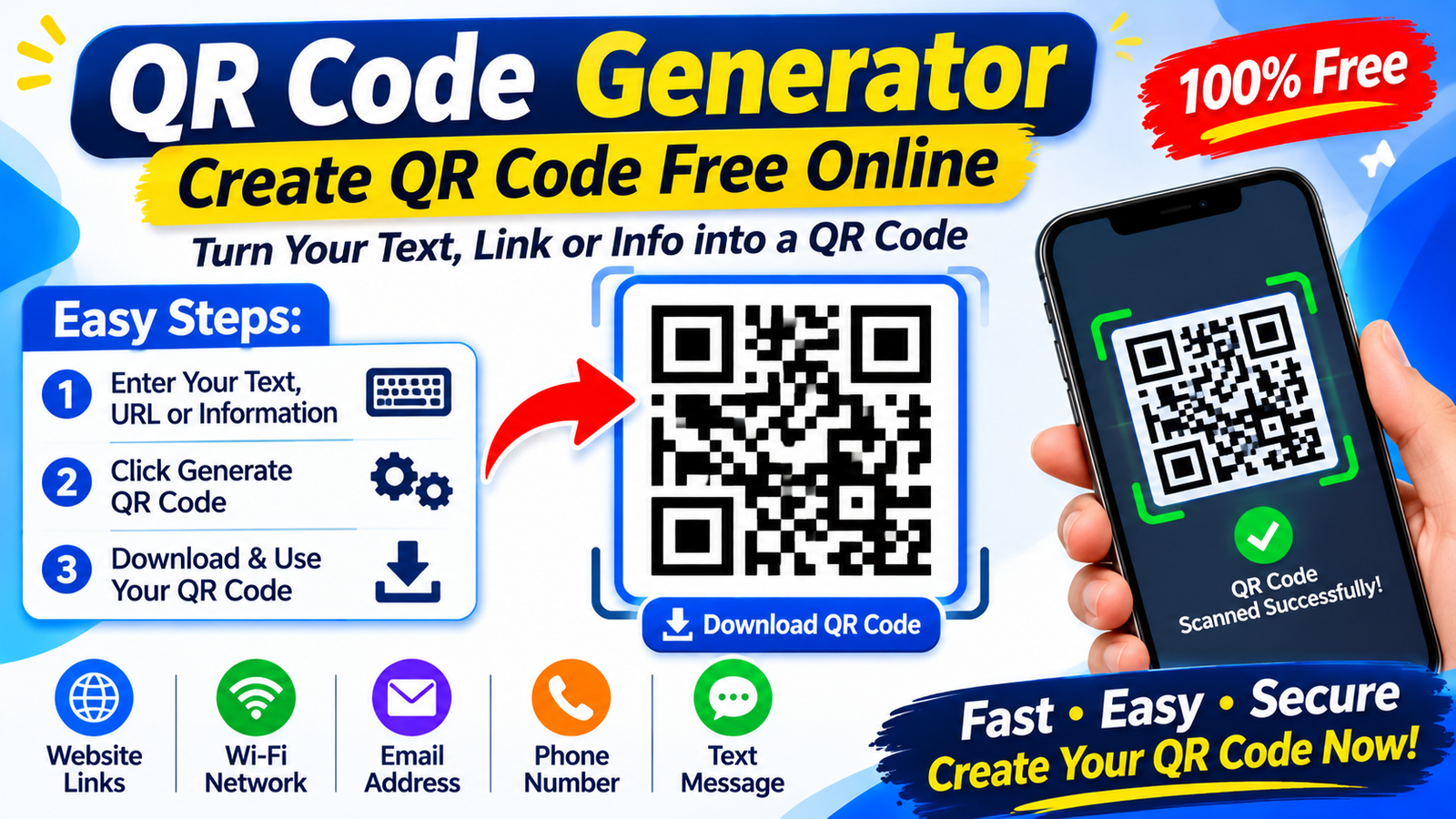
First, decide what you want people to see after scanning, such as a link to your website. Second, open the tool and choose the type of content. Third, paste your link or type your text, and double check it for mistakes. Fourth, pick a style, color, and size. Fifth, download the code in a good quality format. Sixth, test it with your phone before sharing. Using a QR code generator> in this order helps you avoid wasted prints and broken links.
Design Tips for Easy Scanning
A code must be easy to read, so keep the design simple. Use dark squares on a light background, because strong contrast helps scanners. Do not turn the colors upside down, since many scanners expect dark on light. Leave a clear empty border around the code, because crowded edges can confuse the camera. If you add a logo, keep it small and in the center. A good QR code generator often has an error correction setting, and a higher level helps a code survive small damage or a logo.
Size, Color, and Placement
Size matters, especially for print. A code that is too small will be hard to scan, so many designers use at least two centimeters, which is about one inch, and bigger for posters or things people scan from far away. Place the code on a flat surface, away from folds, curves, and shiny glare. Make sure it is easy to reach, at eye level when possible. Add a short line such as “Scan to see the menu,” so people know what to expect.
Free vs Paid Options
Free tools are great for simple, static codes that point to a fixed link. They usually offer basic designs and downloads. Paid plans often add dynamic codes, scan statistics, bulk creation, custom colors, and logo options. If you only need one code for a poster or a card, a QR code generator free of cost is often enough. If you run campaigns and want to edit links later or see how many people scan, a paid plan may be worth it. Read the terms first, because some dynamic codes stop working if you stop paying.
Where to Use QR Codes
You can place codes on menus, flyers, business cards, product boxes, shop windows, event tickets, and name tags. They work well on packaging for instructions or videos and on posters for sign ups. In stores, they can link to reviews or offers. In classrooms, they can link to lessons. Just remember that people need a good reason to scan, such as a discount, a menu, or helpful information. A code with no clear benefit often gets ignored.
Security and Safety
Not every code is safe. Scammers sometimes place fake codes on top of real ones or on posters, hoping to send people to harmful sites. Before you scan, look at the link your phone shows and make sure it looks right. Do not enter passwords or payment details on a page you reached by a code you do not trust. If you create codes for others, protect them by using a clear, trusted domain. Choose a QR code generator that is honest about how it stores and handles your data.
How to Test Before Printing
Always test your code before printing a large batch. Scan it with at least two or three different phones, including an older one if you can. Test it on the screen and on a printed sample at the real size. Check that the link opens fast and works well on a mobile screen. Try scanning from different distances and in different light. A few minutes of testing can save you the cost and shame of printing hundreds of broken codes.
Common Mistakes
The first mistake is making the code too small. The second is using low contrast colors, like light gray on white. The third is linking to a page that is not made for mobile. The fourth is forgetting to test. The fifth is using a dynamic code on a free trial and losing it later. The sixth is adding no call to action. Avoiding these mistakes will make your QR code generator results look professional and work well for everyone.
Tips for Better Results
Keep the link short, since shorter data makes a simpler code. Use a short, clean page address that is easy to remember in case the code fails. Choose SVG or a high resolution file for printing, so edges stay sharp. Track results with simple link tags if your plan allows it. Update the page behind the link instead of making new codes. These habits help any QR code generator give you codes that last and perform well.
Checklist Before You Print
Before you print, go through a short check. Did you create the code with a QR code generator you trust? Is the link correct and mobile friendly? Is the code big enough and placed on a flat spot? Is there good contrast and a clear border? Did you test it on several phones? Did you add a short instruction line? If you can say yes to each question, your code is ready for print or screen.
Final Thoughts
A QR code is a small square, but it can open big doors for your business, your event, or your class. With a simple tool, careful design, and a quick test, you can make codes that people enjoy scanning. Keep them safe, keep them clear, and always give people a reason to scan.