Introduction
You have a PDF, and you need to change one line, fix a typo, or copy a table, but the file just will not let you edit it. This is a very common problem, and a pdf to word converter solves it in a few clicks. It turns your fixed PDF into a Word file that you can type in and edit freely. In this guide, you will learn what a pdf to word converter is, how to use one safely, and how to get clean results, all in simple words.
What Is a PDF to Word Converter?
A pdf to word converter is a tool that changes a PDF file into an editable Word document. You upload your PDF, press convert, and download a .docx file that opens in Microsoft Word or similar apps. Inside the new file, you can change text, fix spelling, move paragraphs, and add pictures. Many tools work online in the browser, while others are programs you install. People use them for resumes, contracts, school papers, reports, and forms that need small changes.
Why PDF Files Are Hard to Edit
A PDF is made to look the same on every device. That is great for sharing, but it also means the file is more like a picture of a page than a flexible document. The text is placed in fixed spots, and the program does not know where paragraphs start and end. This is why simple edits can break the layout. A converter tries to read those fixed spots and rebuild real paragraphs, tables, and headings that you can edit like normal text.
How a PDF to Word Converter Works
The tool reads the content of your PDF and finds text, images, tables, and fonts. Then it guesses the structure, such as where a paragraph begins, where a heading sits, and which lines belong to a table. After that, it builds a new Word file with the same content and tries to copy the look of the original page. If the PDF contains scanned images of text, the tool may use a technology called OCR, which reads letters from pictures. The result depends on how clean the original file is.
Text PDFs vs Scanned PDFs
There are two kinds of PDF files. A text PDF was created from a program like Word or a website, and it contains real text that a tool can read directly. A scanned PDF is just photos of paper pages, so the tool must use OCR to find the words. Text PDFs usually convert very well. Scanned PDFs can have mistakes, especially if the scan is blurry, tilted, or in a rare font. You can often tell the difference by trying to select the text with your mouse.
Who Should Use a PDF to Word Converter?
Students can edit notes and assignments that came as PDFs. Job seekers can update an old resume when the original file is lost. Office workers can change reports, offers, and forms. Teachers can adjust worksheets and exam papers. Small business owners can edit invoices and contracts, though they should be careful with legal changes. Anyone who has a PDF but needs an editable version can save a lot of time, instead of typing everything again from the start.
Features to Look For
A good tool keeps the layout, fonts, and images close to the original. It should handle tables, bullet lists, and columns in a clean way. OCR support is important if you work with scanned files. Look for a fair file size limit, fast conversion, and a clean design with few ads. Batch conversion helps when you have many files. Finally, check that the tool explains how long it keeps your files, because privacy matters, as we will discuss soon.
How to Use a PDF to Word Converter Step by Step
First, make sure your PDF is not damaged and that you have any password it needs. Second, open the converter and upload your file. Third, choose Word as the output, and turn on OCR if the file is scanned. Fourth, press convert and wait for the file to be ready. Fifth, download the Word file and open it. Sixth, read it from start to end and fix any problems. Using a
Convert PDF to Word Without Extra Software
You may not even need a separate tool. Microsoft Word can open many PDF files directly. Go to File, choose Open, and select your PDF, and Word will offer to convert it into an editable document. Google Docs can also open PDFs that you upload to Google Drive, and then you can save the result as a Word file. These built-in ways work best for simple text files. For complex layouts or scanned pages, a special converter usually gives better results.
How to Keep Formatting Correct
Formatting is the part that goes wrong most often. To protect it, start with a clean PDF, not a low quality scan. Choose a converter that keeps layout and fonts. After converting, check the headings, bullet lists, tables, and page breaks. If a font looks different, it may not be installed on your computer, so install it or choose a similar one. Use Word’s styles to fix headings instead of changing each line by hand. A little cleaning at the end makes the file look professional.
Limits of Automatic Conversion
No pdf to word converter is perfect. Complex layouts, many columns, floating images, special fonts, and fancy tables can shift or break. Scanned pages can create spelling mistakes that the tool did not catch. Mathematical formulas and rare languages may also give weak results. Some files simply look different once they become a Word document. Always compare the new file with the original and fix problems before you share it. Think of the tool as a fast starting point, not a magic button.
Free vs Paid Options
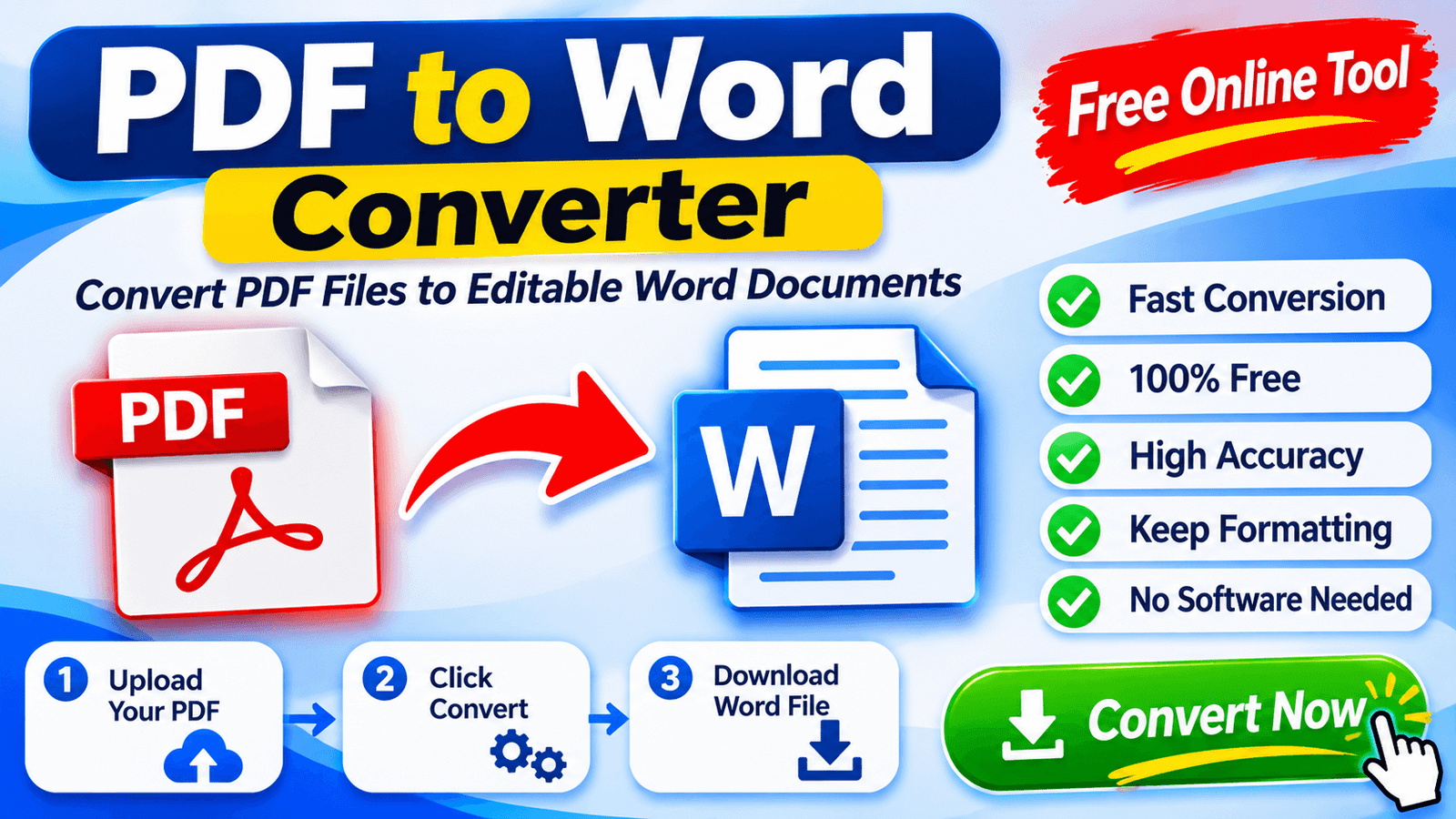
Free tools are good for short files, quick fixes, and occasional use. They may limit file size, number of pages, or conversions per day, and they sometimes add ads. Paid tools usually offer better layout accuracy, OCR, batch conversion, larger files, and extra features such as editing and signing. If you convert a file now and then, a pdf to word converter free of cost is often enough. If you work with documents daily, a paid plan may save time. Test a free version first and compare.
Privacy and Safety
Your PDF may contain private details such as names, addresses, bank numbers, or contracts. Before you upload it to a website, read the privacy page and see how long the files are stored and whether they are deleted. Avoid uploading very sensitive documents to unknown sites. Pick a pdf to word converter that clearly states it removes your files after a short time. If the file is very private, use a trusted program on your own computer instead of an online service.
Fixing Common Problems After Conversion
If the text looks messy, check whether the converter created many small text boxes instead of normal paragraphs. If so, copy the text into a clean page and apply styles. If tables look broken, fix the column widths or rebuild the table. If pictures moved, set their wrapping option in Word and place them again. If letters look strange, the font may be missing. Spend a few minutes on cleanup, and your document will look much better.
Converting Large and Protected Files
Big PDFs with many pages can be slow or can fail on free tools. Split the file into smaller parts and convert them one by one, then join them in Word. If a PDF is password protected, you must enter the password, or the tool cannot open it. If the file has restrictions on editing, only convert it if you have the right to change it. Always respect the owner of a document and the rules that come with it.
Common Mistakes
The first mistake is uploading a private file to an unknown website. The second is not checking the final document after conversion. The third is using a low quality scan and expecting perfect text. The fourth is forgetting to turn on OCR for scanned files. The fifth is editing a file that you do not have permission to change. Avoiding these mistakes makes your pdf to word converter routine safer and gives you better results.
Tips for Better Results
Start with the best quality PDF you can find. If you made the file yourself, keep the original Word version, so you do not need conversion later. Convert short files first to test the tool. Compare the output with the original page by page. Save your new file with a clear name and keep a copy of the original PDF. These small habits make any pdf to word converter work better and protect you from losing the original.
Checklist Before You Send
Before you send or print the new file, run a short check. Did you use a pdf to word converter that you trust? Did you read the whole Word file and fix mistakes? Do headings, tables, and pictures look right? Are names, numbers, and dates correct? Did you save a copy of the original PDF? Is the file name clear? If you can say yes to each question, your document is ready to share with confidence.
Final Thoughts
Turning a PDF into an editable file does not have to be hard. With the right tool, a clean file, and a little cleanup, you can edit documents in minutes. Stay careful with private files, always check the result, and keep the original safe.